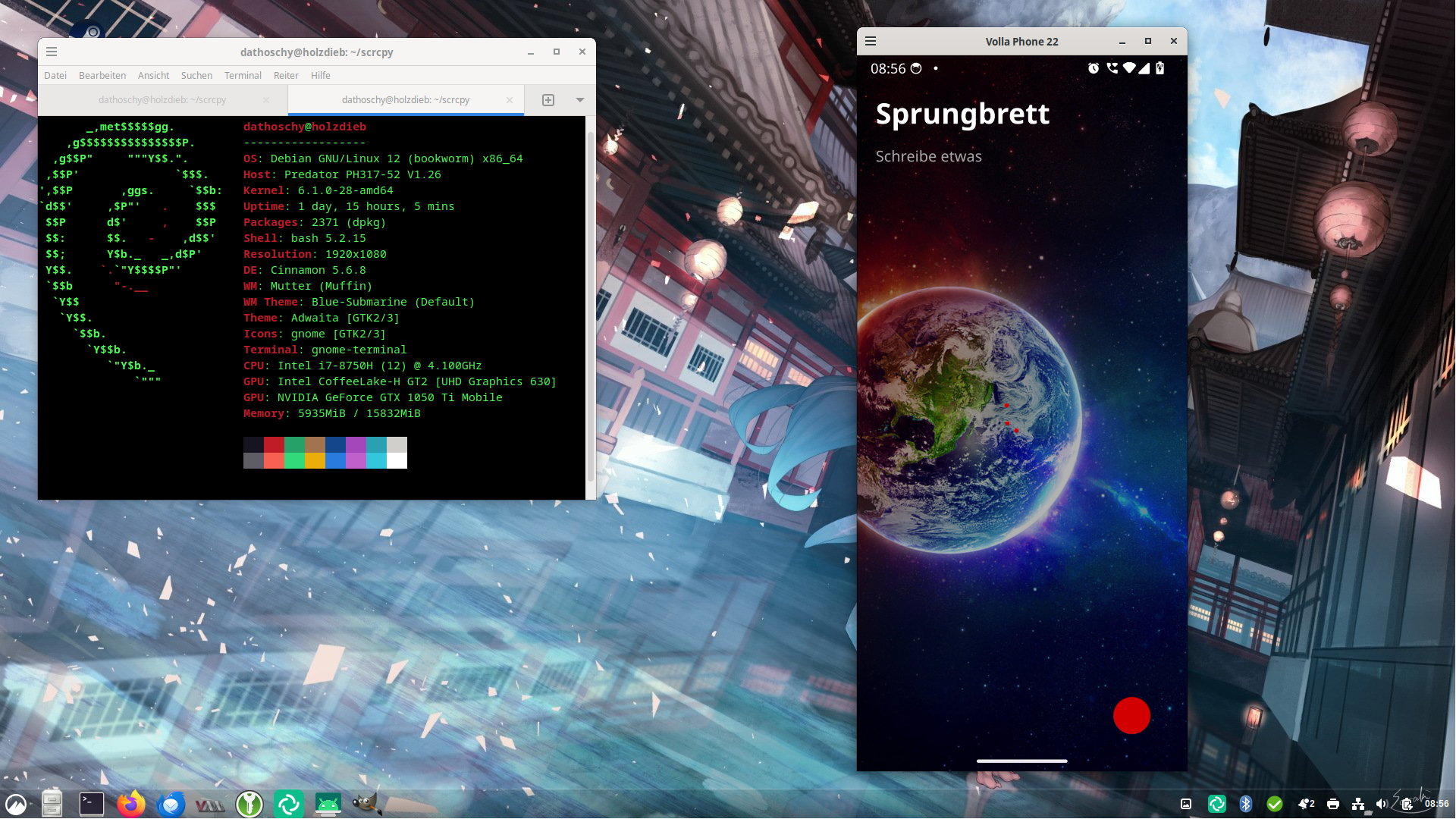
There are several reasons why you might want to display your smartphone screen on your computer. Perhaps you want to control an app from your desktop, create a tutorial or simply enjoy a larger display.
On Linux, this is surprisingly easy with the free, open-source application scrcpy. You do not need to root your smartphone or install an additional app on it.
Getting Started
First, we need to enable the developer options on the smartphone.
Open your phone’s settings and navigate to:
Settings → About Phone → Build Number
Tap the build number seven times. Depending on your device, you may need to enter your PIN to confirm.
The developer options can usually be found under:
Settings → System → Developer Options
The exact location and wording may vary depending on your Android version and smartphone manufacturer.
Enable USB Debugging
To allow scrcpy to communicate with your smartphone, USB debugging must be enabled.
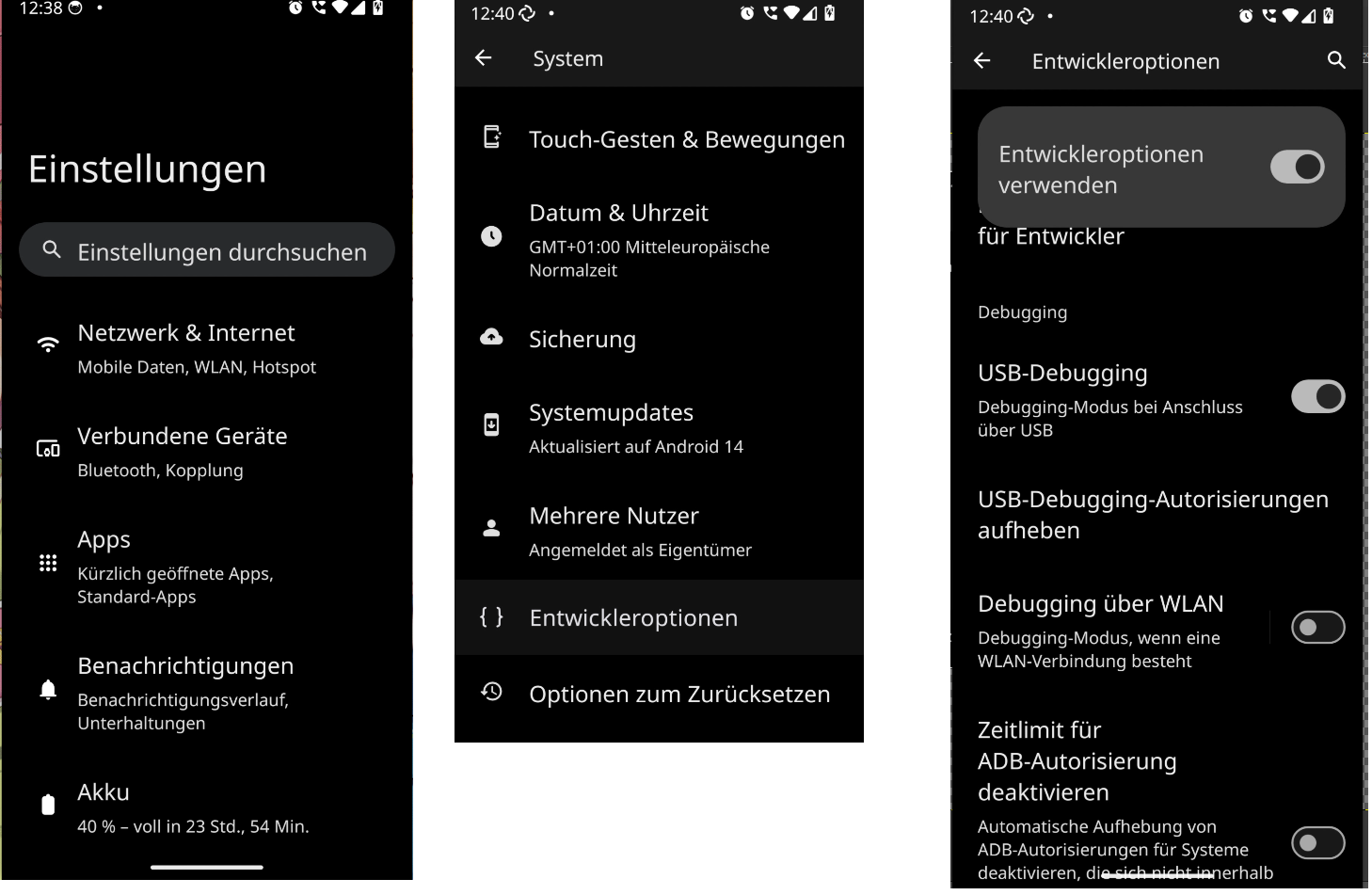
Open the developer options, scroll down to USB Debugging and enable it.
When you connect your smartphone to your computer via USB, Android may ask whether you want to allow USB debugging from that computer.
Confirm the request on your smartphone. Only authorise computers you trust.
Mirroring Your Smartphone Screen
Now let’s move over to the Linux computer.
The following instructions are intended for Debian and Debian-based distributions such as Ubuntu.
First, install Android Debug Bridge, commonly known as ADB.
~~bash sudo apt install -y adb ~~
ADB allows your computer to communicate with an Android device.
Installing scrcpy
scrcpy, short for Screen Copy, is an open-source application developed by Genymobile.
It is available through various Linux package managers, although the versions provided by some distributions may be outdated.
If you prefer to install a current release, you can use the official GitHub repository.
First, install the necessary dependencies:
~~bash
sudo apt install -y ffmpeg libsdl3-0 libusb-1.0-0 adb wget va-driver-all
gcc git pkg-config meson ninja-build libsdl3-dev
libavcodec-dev libavdevice-dev libavformat-dev libavutil-dev
libswresample-dev libusb-1.0-0-dev libv4l-dev libdrm-dev
~~
Next, clone the official repository:
~~bash git clone https://github.com/Genymobile/scrcpy ~~
Change into the newly created directory:
~~bash cd scrcpy ~~
Now run the installation script:
~~bash ./install_release.sh ~~
The script downloads and verifies the appropriate server component and builds the Linux client.
Depending on your system, administrator privileges may be required during installation.
Displaying Your Smartphone Screen
Connect your smartphone to your computer using a USB cable.
If Android asks you to authorise USB debugging, confirm the request on your phone.
Then open a terminal and start scrcpy:
~~bash scrcpy ~~
Your smartphone screen should now appear in a window on your Linux desktop.
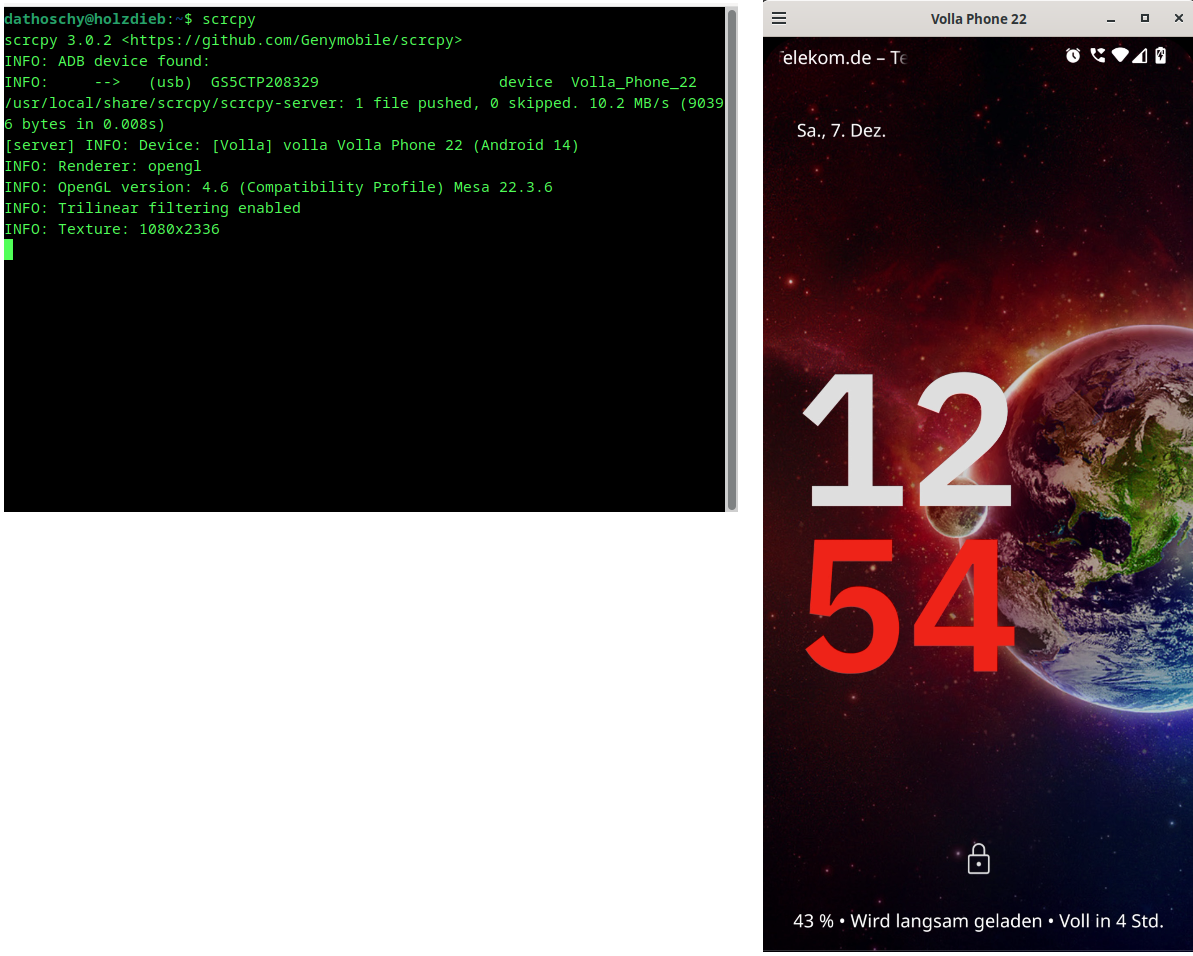
You can also control your smartphone using your computer’s mouse and keyboard.
On supported devices, scrcpy can transmit audio as well. Standard audio forwarding is supported on Android 11 and newer.
Keeping scrcpy Up to Date
Software occasionally needs updating, and scrcpy is no exception.
To update an installation created from the GitHub repository, navigate to your local scrcpy directory and run:
~~bash git pull ./install_release.sh ~~
This updates the repository and reinstalls the current release.
Uninstalling scrcpy
If you no longer need scrcpy, you can uninstall it from the cloned repository directory:
~~bash sudo ninja -Cbuild-auto uninstall ~~
This command applies to the installation method described in this tutorial.
Further Documentation
scrcpy offers plenty of additional features and configuration options.
You can display its available command-line options by running:
~~bash scrcpy –help ~~
You can also read the manual page:
~~bash man scrcpy ~~
Further documentation is available in the official scrcpy repository on GitHub .
A Final Note
When you connect your smartphone using scrcpy, everything displayed on your phone can also be seen on your computer.
Depending on your Android version and device, audio may be forwarded as well.
Keep in mind that notifications and other personal information may become visible on your computer screen.
If you do not regularly need USB debugging, consider disabling it again after using scrcpy.